

How NestCut works: from a handwritten cutting list to a plan, labels and a quote
Nine short steps, about a minute for a normal job. You write the list as usual; NestCut does the typing, the board count, the labels and the quote.
1. Write the list by hand
Write the cutting list the way you always do: part name, length (first, along the grain), width, quantity, the edges to tape and any groove. Any paper works. Our free printable form has the right columns and scans best. Not sure about the format? See the cutting list template guide.
Write a heading such as Cabinet A or Wardrobe above a group of parts: NestCut puts it in front of each part name (Cabinet A - Side), so the labels show which cabinet a piece belongs to.
2. Snap or pick the pages
Tap Snap and photograph each page, or tap Gallery to pick photos you already have (several at once for long lists). Hold the phone straight above the page in good light; the whole page should be in the photo.
3. NestCut reads every row
In about 20 seconds NestCut reads every part: sizes, quantities, edging marks (L1, L2, W1, W2) and grooves. A second, zoomed read checks the numbers, so an open-top 8 isn't taken for a 5. NestCut then asks: "I read 19 parts. Does your paper have 19 rows?" If the count is wrong, you know straight away that a row was missed.
4. Check each row against your handwriting
Your own handwriting appears next to every row. Red rows must be fixed (a missing size, a part bigger than the board). Orange rows need a look (a digit that looked cut off, a crossed-out row, an unusual size). Tap a row to correct it. Nothing is cut until you are happy.
5. Set the boards
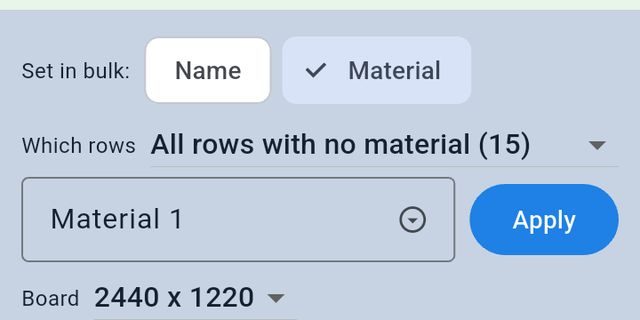
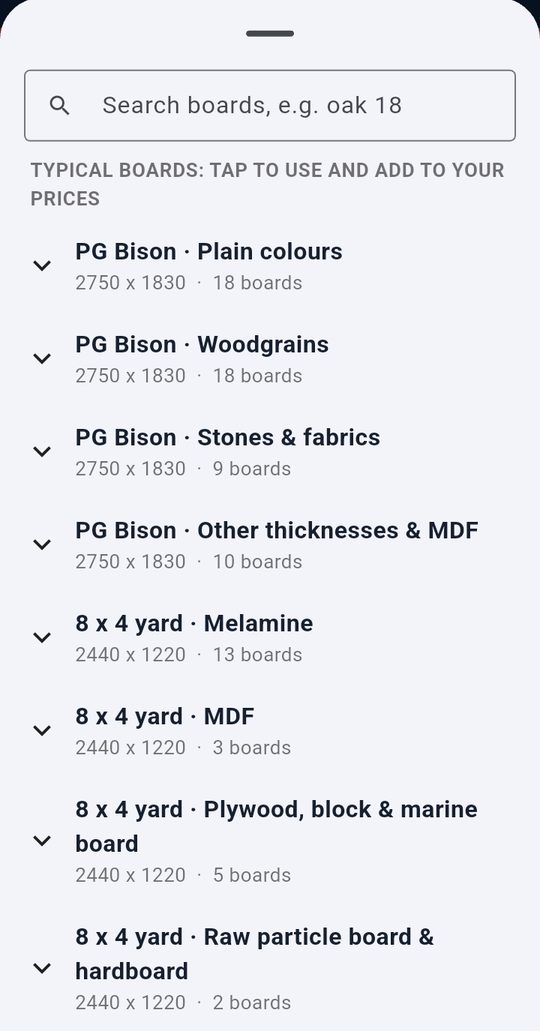
Use Set in bulk to give many rows a material at once: a range of rows, every row of one material, or all rows with no material. Tap the ⌄ in the material box to pick from your own boards or from typical boards by category (PG Bison colours, woodgrains, stones; 8×4 melamine, MDF, plywood, blockboard), or search "oak 18".
No edge marks on the paper? NestCut adds edging from the part name: doors and drawer faces all round; sides, tops, bottoms and shelves on the front edge; drawer-box parts on the top edge. Your X marks always win.
6. Thickness, grain, board size and saw
Pick the thickness for each material and turn grain on for woodgrain boards (parts are never turned) or off for plain colours (NestCut may turn parts to save boards). The board size follows the boards you chose: PG Bison colours plan on 2750 × 1830, yard boards on 2440 × 1220. Set your saw once: trim (the rough edge taken off each board), kerf (the blade width) and edge tape thickness, which is taken off taped sides so every piece finishes at the right size.
7. Make plan
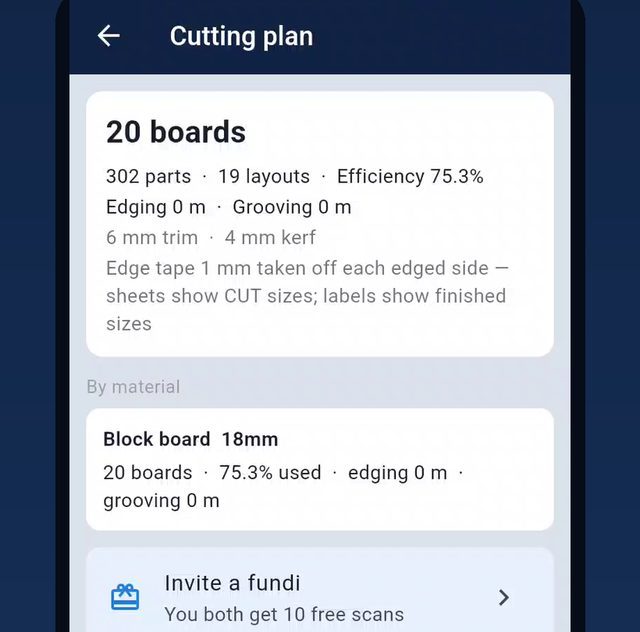
Tap Make plan. NestCut packs every part onto the boards and shows how many boards each material needs, how well they are used, and the edging and grooving metres.
8. Print, label and share
Share the plan PDF (every board with its own cut list) on WhatsApp, print labels (A4 sheets of 24; start at any label on a half-used sheet) so every piece carries its size, board and the edges to tape, or export a MaxCut file for the yard's computer. Save the job to come back to it later.
9. Send a quote
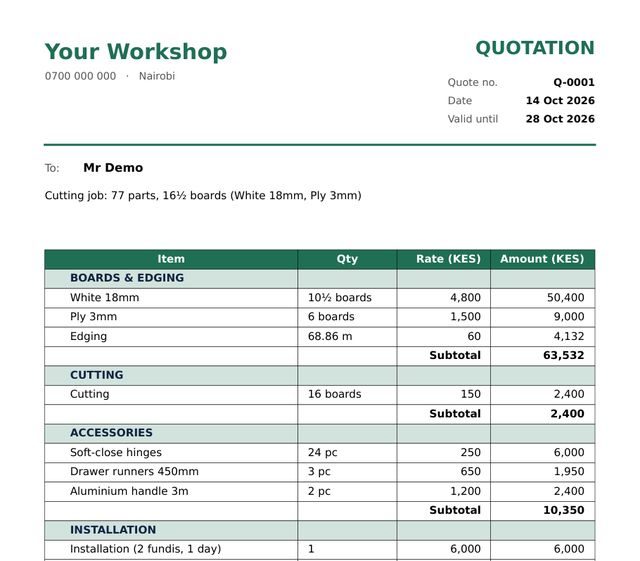
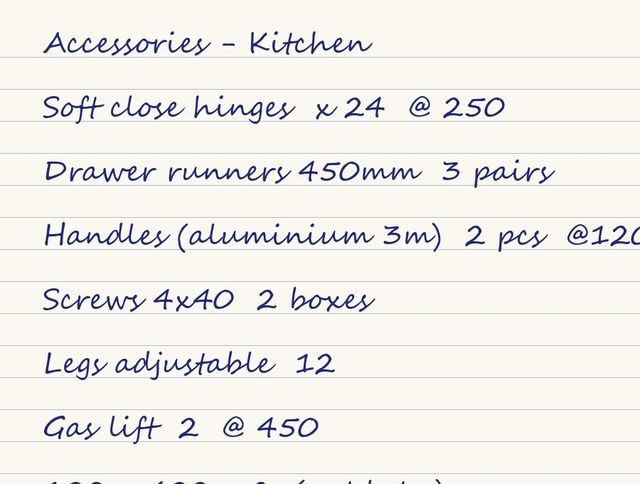
Tap Quote. Boards, edging and cutting are priced from the plan with your prices. Add accessories (type them, or scan a handwritten accessories list), installation and transport. Each section gets its own subtotal, then the total. Pick a design (classic, simple or trade) and send the PDF. More about quotes →
Tips for lists that scan well
- Write each part on its own line, with the length first: Side 720 × 560 × 2.
- Use the same order on every line: size × size × quantity.
- Mark taped edges with an X under L1, L2, W1, W2, or write all round.
- Cross out mistakes with one clear line; NestCut flags crossed-out rows for you to check.
- Photograph in daylight, straight above the page, with the whole page in the frame.
- For long lists, number the pages and snap them in order.
Frequently asked questions
How long does a scan take?
About 20 seconds per scan on a normal phone connection. A long list over several pages is read in one go.
Do I need the NestCut form?
No. Any clear handwritten list works. The free printable form has the right columns, so it scans best.
What if NestCut reads a number wrong?
Your handwriting is shown next to every row and doubtful numbers are flagged in orange. Tap the row and correct it before you make the plan.
Can I mix materials on one list?
Yes. Set the material per row or in bulk; the plan shows boards per material. If materials have different sheet sizes, make one plan per size.
Can I type a list instead of scanning?
Yes. Tap Type a list on the home screen.